Curate and share investment ready companies using Lists
This article covers how to use Abaca to curate any list of companies, such as for deal stages or cohorts, and then share them with other investors or support organizations.
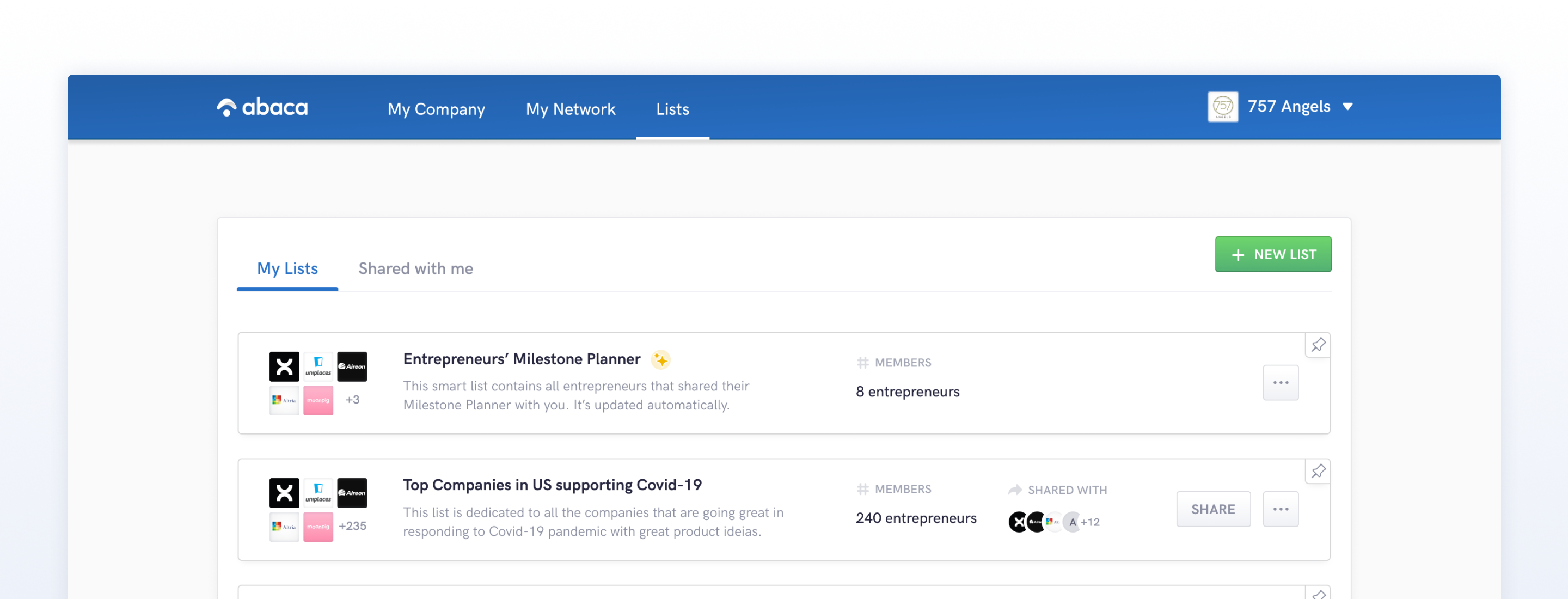
Lists are a flexible tool for remembering, tracking and sharing companies you’re interested in.
- Accelerators and other entrepreneur support organizations (ESOs) can use Lists to move companies through a selection process and then share cohorts or alumni with mentors and investors.
- Investors can use Lists for keeping track of companies in decision-making stages, from companies to keep an eye on, to those in active diligence, portfolio companies looking for their next raise, companies you’ve passed on already, etc.
Each company on a List connects to their public Abaca profile, including their latest Venture Investment Level and answers to match questions. If the recipient of a List is also on Abaca, each company will have a match score based on the recipient’s criteria, making it easy for them to identify the best fits for their particular interests.
How to create a List
Go to Lists from the main menu
- Click/tap the green "New List" button
- Name the list whatever you’d like
- Add an optional description
- Click/tap "Create List"
- The new list will appear and is ready for companies
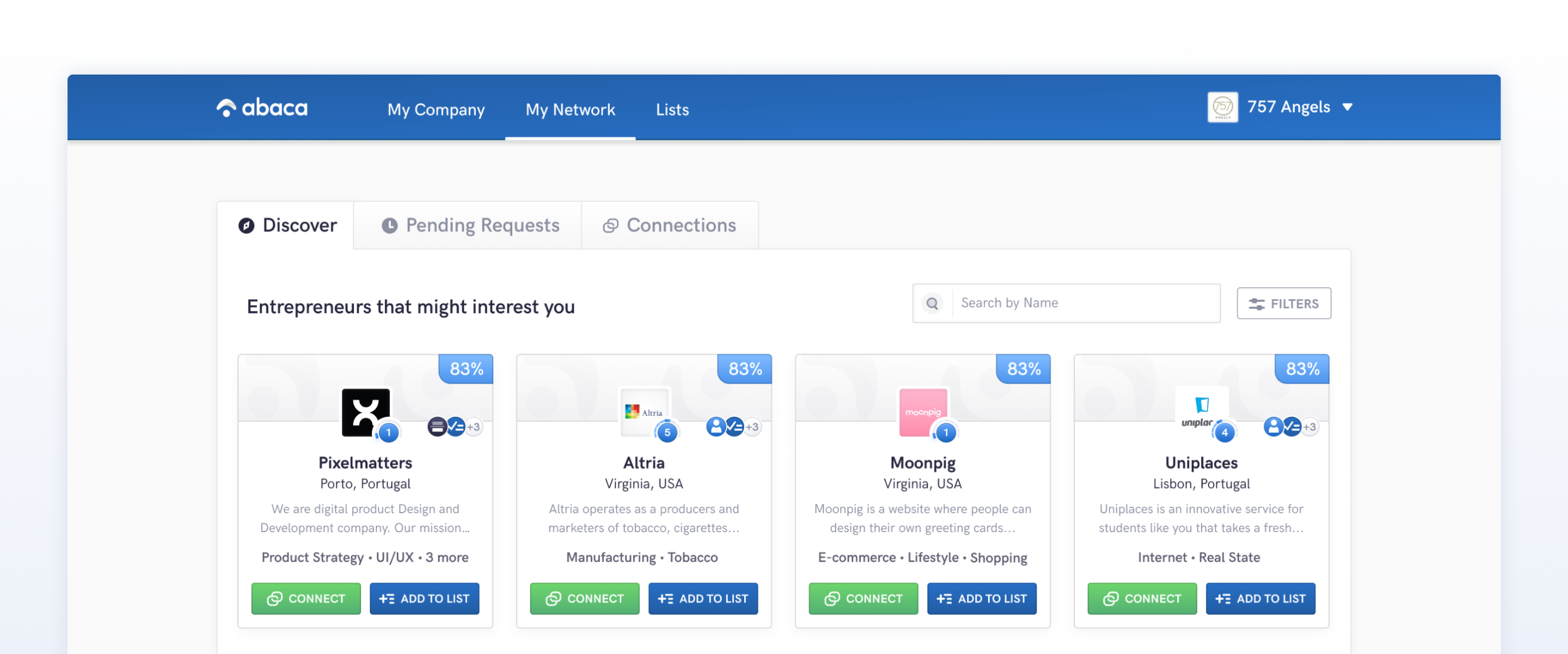
Go to My Network from the main menu
- If you see a company you want to add, use the "Add to List" button
- At bottom left of the resulting Add to List form, use the "Create New" link
- Name the list whatever you’d like
- Add an optional description for the list
- Click/tap "Create List"
- A new list will be created, and the company or companies you selected will be added to it
How to add to or modify a List
From the Lists page
- Click on the List you’d like to view or change.
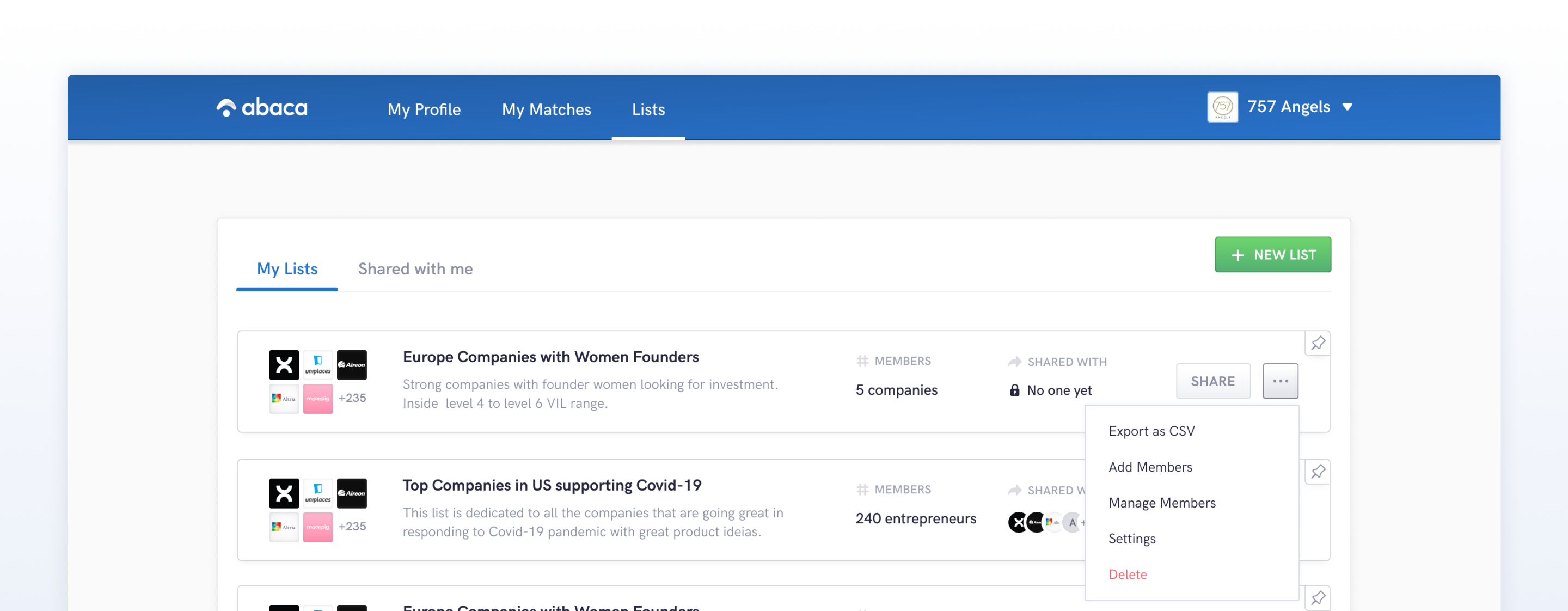
- From here, you can add companies to the List from the more button (box with three dots inside) at top right, select “Add Members” and then follow the prompts.
- To the left of each company is a blank check box. Check one or more companies, and then follow the prompts to either remove those selected, copy them to another list or move them to a different list (removing them from the current list).
From the My Network page
- Click on the blue "Add to List" at the bottom right of the company info card.
- You can repeat for additional companies to add more at once.
- Click the green "Add to List" button at the bottom right of the screen.
- Select a List from the options or use the "Create New" link to add a new list.
How to share a List
You may share a list at any time, either with a fellow Abaca member or via a link. Here’s how:
- Use the "Share" button that accompanies a List, either on the main Lists page, or once you’ve clicked into a particular one.
- If you’re sharing the List with an Abaca member, start typing their name in the search box, and then select the recipient.
- If the recipient isn’t on Abaca or you can’t find their profile, you can copy a link URL at the bottom of the Share window, for sending in an email or text, or adding to a website or social media post.
How recipients benefit from also being on Abaca
If the recipient of a List you’ve shared is also on Abaca, each company will have a match score based on the recipient’s criteria, making it easy for them to identify the best fits for their particular interests.
For example, a company on your list might have a 44% match score based on your criteria. But an investor who receives the shared List might be looking for, say, later-stage companies, raising or lowering the match score accordingly. This adds a customized level of curation per recipient.
Members can also then copy or move companies from your list to their own.
How to export List data
You may want to pull list data into a spreadsheet or another application. From the more button (button with three dots in it) displayed with any List, select “Export as CSV”. A comma-separated file (.csv) will be downloaded to your device.